


Your chart of accounts exists. Your expense tracking system exists. But somewhere between that Amazon charge for "office supplies" and your P&L statement, things get messy.
The mapping between expense categories and GL codes breaks down in predictable ways. Marketing expenses land in G&A. Contract labor hits regular payroll. Software subscriptions scatter across three different accounts depending on who approved them.
Most small businesses discover these mapping problems during tax prep or when a new CFO joins and asks why meal expenses appear in four different places on the income statement. By then, you're looking at hours of reclassification work and potential tax implications.
Why expense mapping breaks: the three-system problem
Small businesses typically run expense tracking through multiple disconnected systems. Credit cards generate their own categories. Your expense management tool uses different labels. Your accounting software has its own chart of accounts structure.
Each system makes sense individually. Together, they create mapping chaos.
Take a marketing agency with 18 employees. Their Amex categorizes Facebook ads as "advertising services." Their expense tool labels them as "paid media." Their QuickBooks needs them under account 6110 - Digital Marketing Expenses. Three different people handle these systems, each following their own logic.
The mapping rules exist in someone's head, a few scattered spreadsheets, maybe some notes in a shared doc. New expenses get mapped based on whoever processes them that day. By month three, the same vendor appears in different accounts depending on the invoice description.
This isn't a training problem. It's a structural problem that gets worse as transaction volume increases.
Service business COA template: what actually works
Service businesses need different mapping structures than product companies. Your biggest expenses cluster around people, tools, and client delivery.
Stop losing track of your business spending.
Costyly helps you record, monitor & control expenses—accurately and efficiently.
- Automated expense categorization
- Real-time budget tracking
- Detailed financial reports
No credit card required
Here's a functional COA structure for service businesses under $10M revenue:
Direct Service Costs (COGS equivalent):
-
5010 - Direct labor (billable staff)
-
5020 - Contractor costs (project-specific)
-
5030 - Project materials and licenses
-
5040 - Client-specific software/tools
-
5050 - Project travel and accommodation
Sales and Marketing:
-
6010 - Sales compensation
-
6020 - Lead generation and advertising
-
6030 - Marketing tools and software
-
6040 - Content and creative production
-
6050 - Events and sponsorships
Operations:
-
7010 - Non-billable salaries
-
7020 - Office and facilities
-
7030 - Technology and infrastructure
-
7040 - Professional services (legal, accounting)
-
7050 - Insurance and compliance
General & Administrative:
-
8010 - Executive compensation
-
8020 - Administrative staff
-
8030 - Banking and finance charges
-
8040 - Licenses and permits
-
8050 - Other administrative
The key distinction: anything directly tied to client delivery goes in COGS-equivalent accounts. Everything else splits between sales, operations, and G&A based on primary function.
Product business mapping: inventory complications
Product businesses face different mapping challenges. You're dealing with inventory movements, fulfillment costs, and the eternal question of where to put Amazon fees.
A workable COA structure for product businesses:
Cost of Goods Sold:
-
5010 - Product purchases
-
5020 - Inbound freight
-
5030 - Customs and duties
-
5040 - Packaging materials
-
5050 - Direct fulfillment labor
Fulfillment and Operations:
-
6010 - Warehouse and storage
-
6020 - Outbound shipping
-
6030 - Returns processing
-
6040 - Quality control
-
6050 - Inventory management tools
Sales and Marketing:
-
7010 - Marketplace fees
-
7020 - Advertising spend
-
7030 - Sales commissions
-
7040 - Trade shows and samples
-
7050 - Photography and content
Administrative:
-
8010 - Office expenses
-
8020 - Professional services
-
8030 - Software (non-operational)
-
8040 - Insurance
-
8050 - Other G&A
The critical rule: marketplace fees stay separate from COGS. Amazon's percentage cut isn't part of your product cost—it's a sales expense. Mix this up and your margin calculations become meaningless.
Preflight checklist before mapping implementation
Before connecting any expense system to your accounting software, run through this validation checklist. Skip these checks and you'll spend weeks cleaning up misallocated transactions.
Account structure validation:
Check that every expense category in your tracking system has exactly one corresponding GL account. No category should map to "multiple possible accounts depending on context." That's where errors multiply.
Print your chart of accounts and expense categories side-by-side before you start mapping.
Print your chart of accounts. Print your expense categories. Draw lines between them. Every expense category needs one line to one account. Ambiguous mappings create inconsistent data.
Historical transaction review:
Pull six months of transactions. Sort by vendor. Look for the same vendor appearing in different accounts. A software vendor showing up in both "Technology" and "Marketing Tools"? That's a mapping problem waiting to spread.
Check your top 20 vendors by spend. Where do they currently live in your COA? Where should they live? Document the correct mapping before you automate anything.
Permission and approval alignment:
Your expense approval matrix needs to match your COA structure. If marketing managers approve marketing expenses, those expenses better map to marketing accounts. Misaligned permissions create systematic mapping errors.
Review who approves what. Compare it to where expenses land. Fix the mismatches before they become permanent.
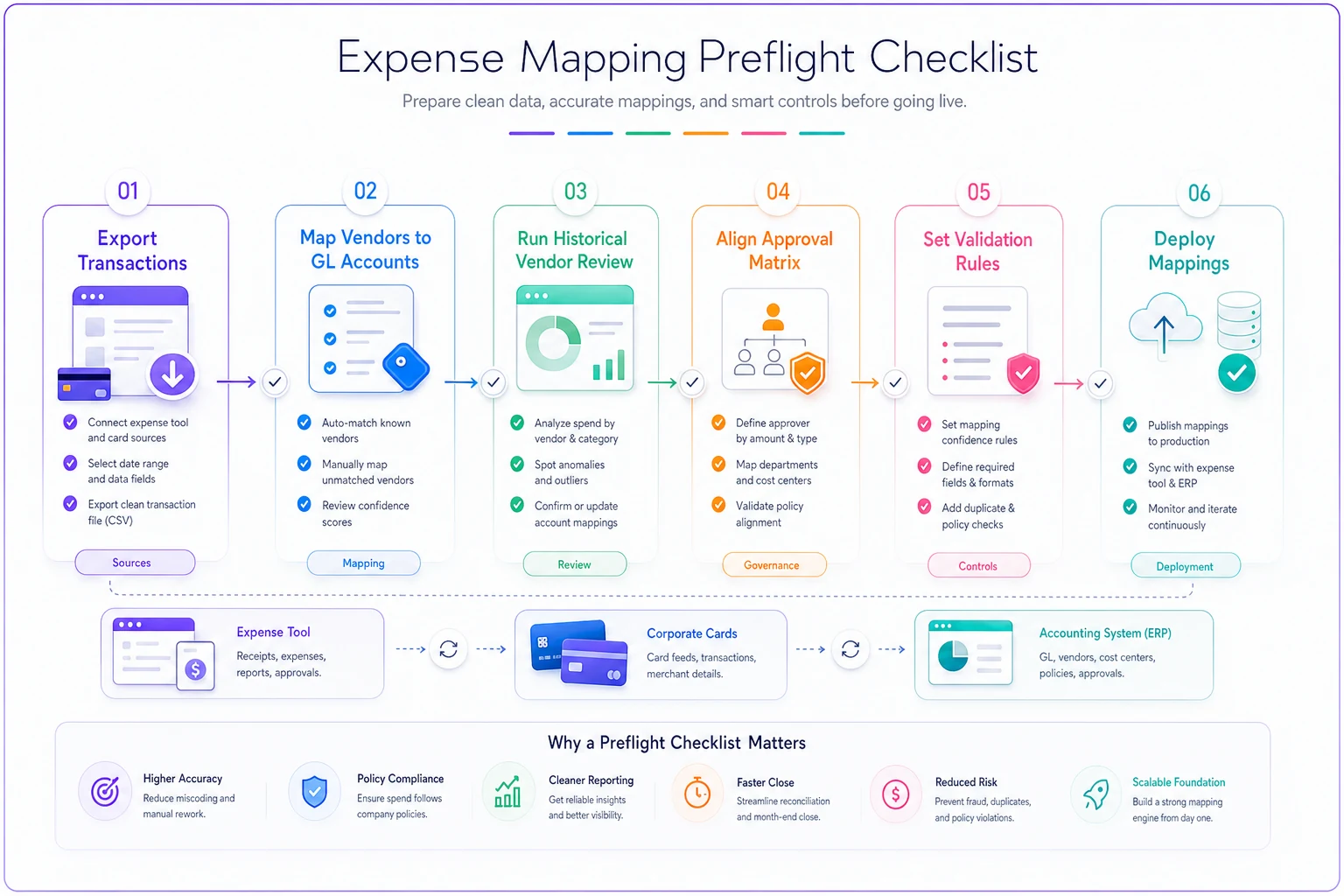
This diagram shows the checklist flow in concise steps for review before go-live.
Validation rules that prevent mapping disasters
Good validation rules catch errors before they corrupt your books. Here's what actually works:
Vendor-based rules:
Lock specific vendors to specific accounts. Adobe always goes to 6030 - Marketing Tools. Your landlord always hits 7020 - Office and Facilities. These rules eliminate decision-making and reduce errors.
Create a vendor mapping table:
| Vendor | Default Account | Override Allowed |
|---|---|---|
| Adobe | 6030 - Marketing Tools | No |
| WeWork | 7020 - Facilities | No |
| Uber | Varies | Yes - requires note |
| Amazon | Varies | Yes - requires category |
Amount thresholds:
-
Under $100
Auto-map based on vendor
-
$100-$1,000
Require category selection
-
$1,000-$5,000
Require manager approval and account verification
-
Over $5,000
Manual review before posting
Different amounts need different treatment. A $12 Uber ride doesn't need the same scrutiny as a $12,000 software purchase.
Category keywords:
Build keyword detection for common misclassifications. "Meal" in the description should trigger meal expense mapping. "Software" should route to technology expenses. But watch for false positives—"software training" might be professional development, not technology.
Post-sync reconciliation: finding what went wrong
Even with good mapping rules, errors slip through. Monthly reconciliation catches them before they become permanent.
Run these four reconciliation checks:
The duplicate vendor check:
Export all transactions by vendor for the month. Sort alphabetically. Look for the same vendor in different accounts. Google Workspace in both "Technology" and "Marketing Tools"? That's a mapping inconsistency.
The unusual balance check:
Compare account balances to the three-month average. Marketing spend doubled? Meals expenses dropped 70%? These anomalies usually indicate mapping errors, not actual spending changes.
The split transaction check:
Find transactions that got split across multiple accounts. A single invoice partially hitting COGS and partially hitting OpEx often means someone didn't know where to put it. These splits multiply confusion.
The uncategorized sweep:
Search for anything hitting generic accounts like "Other Expenses" or "Miscellaneous." These are mapping failures in hiding. Every expense should have a specific home.
Common mapping failures and fixes
Certain mapping errors appear constantly. Here's what breaks and how to fix it:
The contractor classification mess:
A design agency hires a freelance developer for a client project. Where does this expense go? Direct costs because it's billable? Professional services because it's contract work? Marketing because it's for the website?
The fix: Create explicit contractor categories. "Contractors - Billable" goes to COGS. "Contractors - Internal" goes to the relevant department. Never use generic "contractor expenses."
The software subscription scatter:
Small businesses average 34 software subscriptions. They land everywhere—IT expenses, department budgets, credit card statements. The same tool appears in three different accounts depending on who bought it.
The fix: Centralize all software in one parent account with sub-accounts by function. All software flows through account 7030, then splits to 7031 (Operations Software), 7032 (Marketing Software), 7033 (Administrative Software).
The meal expense maze:
Team lunch? Client dinner? Working meal during inventory? Travel meal? They're all "meals" but need different treatment for both management and tax purposes.
The fix: Abandon the single "Meals" category. Create "Meals - Team," "Meals - Client," "Meals - Travel," each mapping to the appropriate account. Yes, it's more categories. It's also accurate data.
Troubleshooting integration problems
When expense mapping automation breaks, it usually fails in one of three ways:
The sync stops working entirely:
Transactions pile up in your expense tool but never reach your accounting system. Usually caused by password changes, API updates, or permission modifications. Check authentication first, then API limits, then field mapping changes.
Transactions sync but land in wrong accounts:
The data flows but goes to the wrong place. This happens when the expense tool's categories change but the mapping rules don't update. Export both category lists, compare them, update the mapping table.
Partial data transfers:
Some fields make it through, others don't. The vendor name arrives but not the category. The amount transfers but not the description. This points to field mapping problems. Review which fields your accounting system requires versus what your expense tool sends.
Setting up sustainable mapping rules
Good mapping rules handle growth without breaking. They work when you have 50 transactions a month and when you have 500.
Build rules in this hierarchy:
-
Vendor rules first - These are most reliable
-
Amount rules second - Catches unusual transactions
-
Category rules third - Default fallback
-
Manual review last - For true exceptions
Document every rule. Not in your head, not in Slack messages. In an actual mapping document that new team members can follow.
A sample rule structure:
"IF vendor = 'Amazon Web Services' THEN account = '7031 - Operations Software' ELSE IF amount > $5,000 THEN flag for manual review ELSE IF category = 'Software' THEN account = '7030 - Technology' ELSE send to review queue"
The 90-day mapping cleanup process
If your mapping has gotten out of control, fix it systematically over 90 days:
Days 1-30: Document current state
Export all transactions from the last quarter. Identify where everything currently lives. Don't fix anything yet—just document the mess. You need to see patterns before you can fix them.
Days 31-60: Design new structure
Based on your documentation, design the correct mapping structure. Get buy-in from department heads. Test it with recent transactions. Would the new rules have prevented last month's errors?
Days 61-90: Implement and adjust
Roll out new mapping rules. Start with high-volume vendors, then expand to categories. Monitor daily for the first two weeks. Adjust rules based on actual transaction flow.
When automation makes mapping worse
Automation sounds perfect for expense mapping. Set the rules, let the system handle it. But badly configured automation multiplies errors at machine speed.
A retail business connected their POS system directly to QuickBooks. Every sale, every refund, every adjustment flowed automatically into their books. Seemed brilliant until they discovered three months of sales tax had been mapping to revenue instead of liability accounts. The automation worked perfectly—it just automated the wrong process.
Before automating expense mapping, manually process 100 transactions using your proposed rules. Find the edge cases. Discover the exceptions. Then automate with confidence.
AI-powered operational software can help by learning patterns from your manual corrections. These platforms notice when you consistently remap certain vendors and suggest rule updates. They flag unusual transactions that break normal patterns. But they work best as assistants, not replacements for clear mapping logic.
Making mapping work long-term
Good expense mapping isn't about perfect categories or elaborate automation. It's about consistency and clarity. A simple mapping structure followed religiously beats a complex system that nobody understands.
Start with the basics: one expense category maps to one GL account. Build from there only when you have clear business reasons. Document every rule. Review monthly. Adjust quarterly.
The businesses that get this right treat expense mapping as operational infrastructure, not administrative overhead. They invest time upfront to save multiples later. They catch errors in days, not quarters. Their financial statements actually reflect operational reality.
Your chart of accounts tells your business story. Make sure expense mapping doesn't turn it into fiction.
Ready to master your business expenses?
Join 5,000+ businesses using Costyly to save time, reduce overspending, and improve financial visibility.